How to Prepare Product Images for Multi-Channel Selling: Amazon, Shopify, TikTok Shop, and Beyond
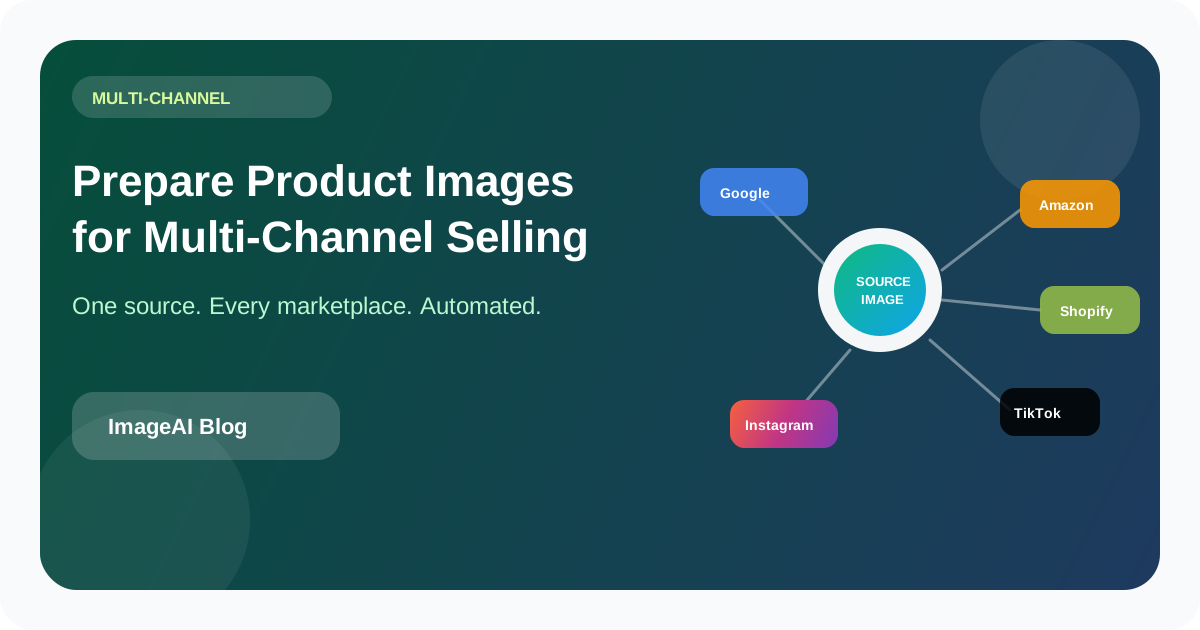
Each sales channel has different image rules, but reshooting for every platform is not the answer. Learn how to build a single-source image pipeline that exports marketplace-ready assets for every channel from one set of originals.
Each sales channel has different image rules, but reshooting for every platform is not the answer. Learn how to build a single-source image pipeline that exports marketplace-ready assets for every channel from one set of originals.
Selling on one platform is straightforward. Selling on five is where product images become an operational problem.
Amazon wants a pure white background on the main image. Shopify gives you creative freedom but rewards fast-loading WebP files. TikTok Shop favors square lifestyle shots. Instagram needs multiple aspect ratios. Google Shopping requires specific structured data and file naming conventions.
Most sellers handle this by creating separate image sets for each channel, which means redundant editing, inconsistent quality, and a publishing bottleneck that grows with every new marketplace you add.
The better approach is a single-source pipeline: one set of high-quality originals that feed automated exports for every channel.
Why Multi-Channel Image Management Gets Messy
Each platform has unique requirements
This is the obvious problem. Dimensions, file formats, background rules, file size limits, and aspect ratios vary across channels. A single product image cannot satisfy all of them without processing.
Requirements change without warning
Amazon updates its image policy. TikTok Shop launches a new ad format. Instagram changes its feed aspect ratio. When your images are manually prepared per channel, every policy change means rework across your entire catalog.
Teams work in silos
The person managing Amazon listings is not the same person running Instagram. Without a shared image pipeline, each team member creates their own versions, leading to subtle inconsistencies in color, cropping, and quality.
Catalog growth multiplies the problem
A 100-SKU catalog across 4 channels is 400 image sets to manage. A 1,000-SKU catalog is 4,000. Manual approaches that worked at 50 SKUs collapse at 500.
Channel-by-Channel Image Requirements (2026)
Amazon
- Main image: White background (RGB 255, 255, 255), product fills 85% of frame, no text/logos/watermarks, JPEG or PNG, minimum 1000px on longest side (1600px+ recommended for zoom), maximum 10,000px.
- Secondary images: Lifestyle, infographic, and comparison images allowed. White background not required.
- File size: Maximum 10 MB per image.
- Key constraint: The main image rules are strictly enforced. Violations trigger listing suppression.
Shopify
- Recommended: Square (1:1) or 4:3 aspect ratio, 2048×2048px for high-DPI displays, WebP or JPEG, maximum 20 MB.
- Product page: Supports zoom, so high resolution matters.
- Key constraint: Shopify auto-compresses uploads. Start with high-quality files to compensate for the platform compression layer.
TikTok Shop
- Main image: Square (1:1), minimum 600×600px, recommended 800×800px+, white or light background preferred, JPEG or PNG.
- Video thumbnails: 9:16 aspect ratio for native-feeling content.
- Key constraint: TikTok is mobile-first. Images must read clearly at small sizes. Fine details get lost.
Instagram Shopping
- Feed posts: Square (1:1), landscape (1.91:1), or portrait (4:5). Minimum 1080px wide.
- Stories and Reels covers: 9:16, 1080×1920px.
- Key constraint: Instagram compresses aggressively. Upload at maximum quality to preserve detail after platform compression.
Google Shopping
- Main image: Non-white background is acceptable but clean backgrounds rank better, minimum 100×100px (800×800px recommended), no watermarks, maximum 16 MB.
- Feed requirements: Image URL must be crawlable, image_link attribute in product feed must be accurate.
- Key constraint: Google uses the image for visual search matching. High-quality, well-lit product images rank better in Shopping results.
Etsy
- Recommended: Minimum 2000px on shortest side for zoom, 5:4 aspect ratio for listing thumbnails, JPEG or PNG, maximum 1 MB for fastest loading.
- Key constraint: Etsy shoppers browse visually. The first listing image is critical for click-through from search results.
Building a Single-Source Image Pipeline
The goal is to shoot and edit once, then export everywhere.
Step 1: Capture at the highest usable quality
Shoot at the maximum resolution your camera supports. Capture in RAW if possible, or at minimum high-quality JPEG. This gives you the most flexibility for cropping and resizing later.
For product shots, always capture against a clean, neutral background. Even if some channels allow creative backgrounds, having a clean cutout as your starting point means you can generate any variant.
Step 2: Create a master file set
For each SKU, produce these master assets:
- Clean cutout — Product on transparent background, highest resolution available.
- White background hero — The cutout placed on pure white, product centered, filling approximately 85% of frame.
- Lifestyle variants — 2–3 scene images if applicable to your product category.
- Detail shots — Close-ups of texture, labels, or features.
These masters are your single source of truth. Every channel export derives from them.
Step 3: Define export presets per channel
Create a specification for each channel:
Amazon Main:
  Source: white-background hero
  Format: JPEG, quality 90
  Dimensions: 2000×2000px (square crop)
  Background: #FFFFFF
  Max file size: 10 MB

Shopify:
  Source: white-background hero
  Format: WebP, quality 85
  Dimensions: 2048×2048px
  Background: #FFFFFF
  Max file size: 20 MB

TikTok Shop:
  Source: white-background hero
  Format: JPEG, quality 85
  Dimensions: 800×800px
  Background: #FFFFFF
  Max file size: 5 MB

Instagram Feed:
  Source: lifestyle variant
  Format: JPEG, quality 92
  Dimensions: 1080×1350px (4:5 portrait)
  Max file size: 8 MB

Google Shopping:
  Source: white-background hero
  Format: JPEG, quality 90
  Dimensions: 1200×1200px
  File naming: [product-name]-[color]-[angle].jpg
  Max file size: 16 MB
Step 4: Automate the export
With presets defined, batch processing can generate all channel variants from your master files automatically:
- Read the master cutout or hero image.
- Resize to the target dimensions with appropriate cropping (center-crop for square, or fit-within for non-square with padding).
- Convert to the target format and quality level.
- Verify file size is within limits; adjust compression if needed.
- Export with channel-appropriate naming.
This step should require zero manual intervention for standard products. Only edge cases (unusual aspect ratios, products that crop awkwardly) need human review.
Step 5: Quality check a sample
After the first automated export run, review 10–15% of images across each channel:
- Does the product fill the frame appropriately?
- Are colors consistent across formats? (JPEG and WebP can render slightly differently at low quality levels.)
- Do lifestyle images crop well into each required aspect ratio?
- Are file sizes within limits?
Fix any systematic issues in your export presets, then re-run.
Handling Aspect Ratio Differences
The biggest practical challenge in multi-channel exports is aspect ratio. Your master image is one shape; each channel wants a different one.
Center crop
The simplest approach: crop from the center of the image to the target ratio. Works well when the product is centered and has enough padding on all sides.
Risk: If the product is tall and narrow, a square center crop may clip the top or bottom.
Fit-within with padding
Scale the product down to fit entirely within the target aspect ratio, then fill the remaining space with the background color (white for most marketplace images).
Risk: The product appears smaller relative to the frame, which can reduce visual impact in thumbnail views.
Smart crop
AI-aware cropping that identifies the product boundaries and adjusts the crop to keep the full product visible while maximizing frame fill.
Best approach for automation because it handles varying product shapes without manual adjustment per SKU.
Common Mistakes in Multi-Channel Image Preparation
Using the same file everywhere
Uploading a single 4000×4000px JPEG to every channel means some platforms will compress it unnecessarily, some will reject it for file size, and none will have the optimal format for their rendering engine.
Forgetting platform compression
Every platform compresses your uploads. If you upload a JPEG at quality 70, the platform may compress it again to quality 60, resulting in visible artifacts. Always upload at high quality (85–95) and let the platform handle its own compression layer.
Inconsistent backgrounds across channels
Your Amazon listing has a pure white background. Your Shopify store uses a light gray. Your Instagram has a warm cream. A customer who finds you across channels sees three different brands. Decide on one approach and stick with it, or intentionally differentiate with a clear strategy.
Ignoring mobile rendering
Over 70% of e-commerce traffic comes from mobile devices. An image that looks great at 2000px may be unreadable at 300px. Always preview your exports at the smallest size they will be displayed, which is usually a search results thumbnail.
Not versioning your export presets
When you update presets (new dimensions, different format), keep a record of what changed and when. If a batch of images suddenly looks wrong on one channel, you need to trace whether it was a preset change, a platform policy update, or a source file issue.
Scaling Beyond Five Channels
As your channel presence grows — adding Walmart Marketplace, eBay, Pinterest Shopping, Faire for wholesale — the single-source pipeline scales linearly. Each new channel is one new export preset, not a new editing workflow.
The investment is upfront: building the pipeline, defining the presets, and automating the export. Once that infrastructure exists, adding a channel is a configuration change, not a project.
Getting Started
If you are currently managing images manually for multiple channels:
- Audit your current state. List every channel, its image requirements, and how images currently get there. Identify where manual work lives.
- Build your master file set. For your top 20 SKUs, create proper high-resolution cutouts and white-background heroes.
- Define export presets for your two highest-volume channels.
- Automate the export and verify quality.
- Expand to remaining channels and SKUs.
Starting small and proving the pipeline works before scaling it avoids over-engineering. Twenty SKUs across two channels is enough to validate the approach. Once it works, expanding to your full catalog is a batch job, not a rethink.
相關文章
繼續閱讀更多 ImageAI 團隊整理的實戰內容。
How to Automate Product Image Watermarks and Branding Without Slowing Down Your Pipeline
Manual watermarking does not scale. Learn how to automate logo placement, brand overlays, and consistent visual identity across product images while keeping your workflow fast and your originals intact.
AI Color Correction for Product Photos: How to Get Accurate, Consistent Colors Across Your Catalog
Product returns spike when on-screen colors mislead buyers. Learn how AI color correction works, when to use it, and how to maintain color accuracy across thousands of SKUs without manual retouching.
Why Ecommerce Teams Need a Unified AI Image Workflow (Not Five Different Apps)
Scattered desktop plugins and single-purpose tools create export churn, inconsistent lighting, and slow launches. Here's why background removal, upscaling, and enhancement belong in one cloud workflow.
上一頁
We Tested 500 Amazon Product Photos Through AI Background Removal: Here's What Passed Listing Review
We ran 500 real Amazon product photos through AI background removal and checked every output against Amazon's main-image policy. Pass rate: 91.4%. Here's what failed — and why.
下一頁
How to Automate Product Image Watermarks and Branding Without Slowing Down Your Pipeline
Manual watermarking does not scale. Learn how to automate logo placement, brand overlays, and consistent visual identity across product images while keeping your workflow fast and your originals intact.