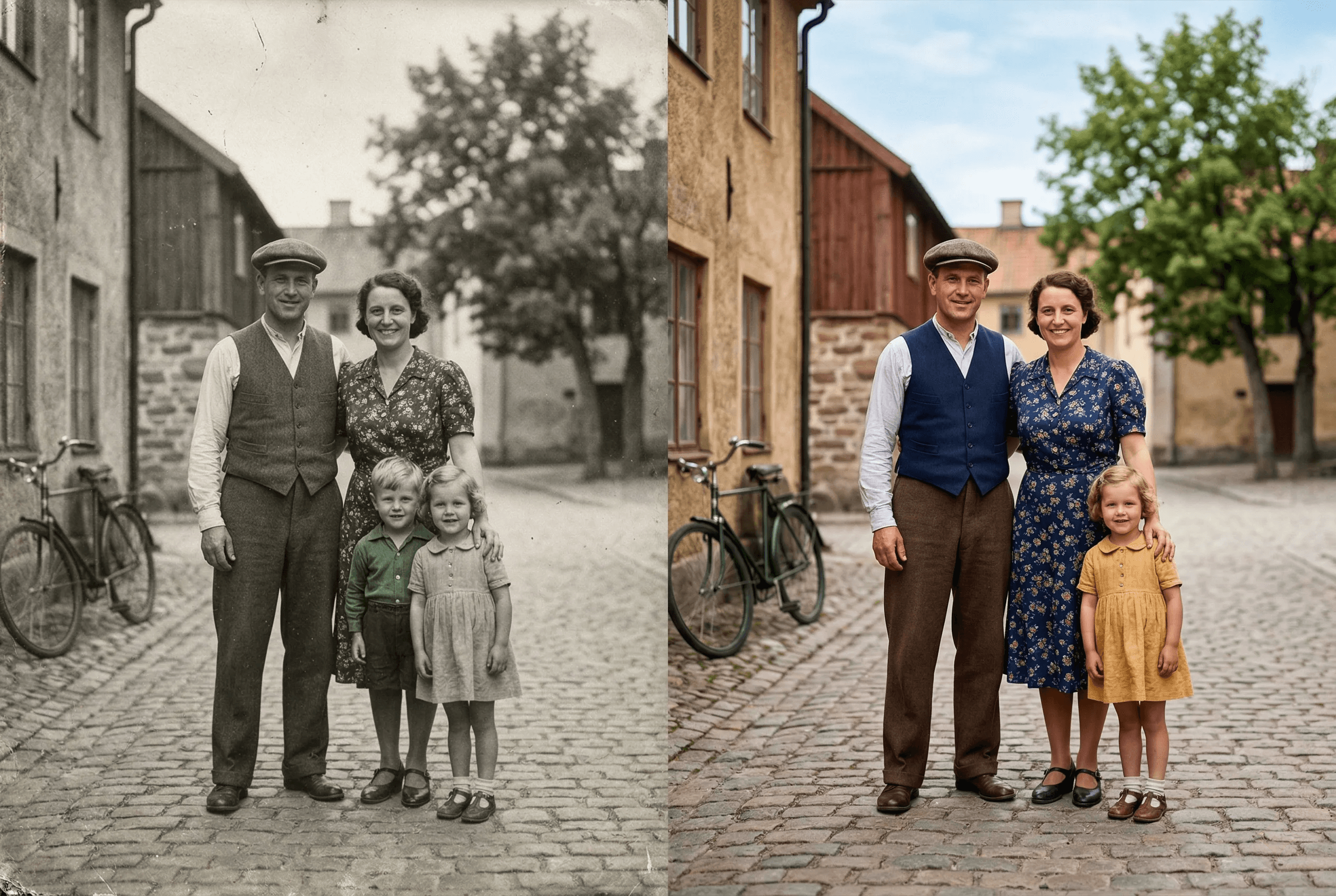
Bring Old Photos to Life
State-of-the-art AI that understands scenes and adds contextually accurate colors.
Auto-detects people, sky, vegetation, and objects
Multiple tone presets: warm, cool, vintage, natural
Custom prompt for specific color preferences
Works on old family photos, historical images, and more
Preserves the original image quality and detail
Process multiple photos in batch mode
Realistic skin tones across ethnicities and lighting conditions
Natural sky, vegetation and clothing color choices
Pairs with image enhancement and upscaling for full restoration
How It Works
Get professional results in just a few simple steps.
1
Upload your black-and-white photo
2
Choose a color style or let AI decide
3
AI analyzes the scene and adds color
4
Download your colorized photo
What People Colorize with ImageAI
Real situations where colorization brings new life to images that already mattered.
Old family photos and portraits
Grandparent weddings, childhood photos, mid-century family shots. Adds natural skin tone, clothing color and background color.
Historical photography
Pre-color-film era photos from the 1900s–1950s. Useful for educators, museums, documentary projects and family histories.
Vintage prints and scans
Scanned prints from the 1960s–1980s that were originally shot in B&W. Restore them as gift-ready color images.
Heritage and genealogy projects
Add color to ancestor photos for family trees, memorial slideshows and printed family books.
Restored film stills
Colorize stills from classic B&W cinema for fan projects, posters or video editing reference.
Editorial and content creation
History blogs, YouTube channels and social content often need colorized images. Generate them in seconds instead of paying a retoucher.
Colorization Output Specs
What the tool produces, and what it leaves alone.
| What gets colorized | Skin, clothing, vegetation, sky, water, common objects |
|---|---|
| What's preserved | Original resolution, composition, lighting and grain texture |
| Color style options | Natural, warm, cool, vintage, plus custom text prompt |
| Input formats | JPEG, PNG, WebP, HEIC (color or grayscale) |
| Output format | Full-color PNG by default |
| Average processing time | 5–15 seconds per image |
| Best source quality | Sharper input = more accurate colorization. Enhance first if grainy. |
| Cost | 2 credits per image — see pricing for details |
How it works
How AI Colorization Actually Picks the Colors
Old colorization tools worked by mapping grayscale values to a fixed color palette — a hand-coded shortcut that produced flat, fake-looking results. You could spot a 2010-era colorized photo from across a room.
Modern AI colorization is different. The model is trained on millions of color photos plus their grayscale versions, so it learns what color a scene 'should' be from context. It recognizes that a 1950s wedding dress is white, that grass is green in spring and golden in autumn, that skin tones vary with lighting and ethnicity, and that water in a sunset photo is warm-toned, not gray. Those decisions come from understanding the scene, not from a lookup table.
ImageAI's colorization model is steerable. By default it picks the most natural, contextually-correct colors for the image. With a text prompt — 'warm late-afternoon light', 'cool winter palette', 'vibrant 1970s color' — you can bias it toward a specific era or mood. For the highest-quality result on old prints, run the photo through Image Enhancement first to clean up scan noise, then colorize, then optionally Upscale for the final print size.
Where Colorization Gets Hard
Honest about the cases where you may need a second pass or a different tool.
Heavily damaged or torn photos
Scratches and tears confuse the AI's scene understanding. Restore the damage first (manual edit or AI restoration), then colorize.
Specific historical colors you want exact
The AI guesses plausible colors. If you need a specific military uniform color or known dress color, use a text prompt to specify.
Extremely low-resolution scans
Under ~500px on the long side, the AI has too little context. Upscale to at least 800px first, then colorize.
Photos with mixed B&W and tinted areas
Hand-tinted vintage photos confuse the model. Convert to pure grayscale first, then colorize for a consistent result.
Frequently Asked Questions
How realistic are the colors?
Very. The AI uses scene understanding (trained on millions of real color photos) to pick contextually accurate colors. Skin tones, sky, vegetation and clothing are colored the way a real photo from that era would look — not from a hand-coded palette.
Can I control the color output?
Yes. Pick a tone preset (natural, warm, cool, vintage) or write a custom text prompt — for example, 'warm late-afternoon sunlight, golden grass, soft blue sky'. The model uses the prompt as steering on top of its scene understanding.
Does it work on very old or damaged photos?
Yes, for most B&W images. For best results with damaged photos, run the image through enhancement first to reduce grain, scan noise and JPEG artifacts. Then colorize. For severely torn photos, do manual or AI restoration before colorizing.
What kinds of photos work best for AI colorization?
Sharp B&W photos with clear subjects (portraits, family snapshots, landscape, historical street scenes) work best. Heavily blurred, very low-resolution, or hand-tinted images are harder. As a rule of thumb, if you can clearly see what's in the photo, the AI can colorize it.
Can I colorize a photo of a specific person and get accurate skin tone?
Yes. The model handles skin tones across ethnicities and lighting conditions, and respects the lighting in the original photo (warm indoor light vs cool daylight). If you need to nudge the result, use a prompt like 'natural warm skin tone, indoor lamp lighting'.
Does it preserve the original photo quality?
Yes. Colorization adds color but doesn't change resolution, composition, or grain. For old scans, the combination that works best is: enhance → colorize → upscale.
Can I colorize multiple old photos at once?
Yes — batch mode lets you process multiple photos in one job. Useful for digitizing a whole family album or a historical archive.
What does it cost to colorize a photo?
Each colorization costs 2 credits. New accounts start with 30 free credits, so you can colorize 15 photos without paying anything. See the pricing page for higher-volume plans.
Related guides & tools
Explore More Tools
Remove Image Background Instantly
Remove backgrounds from any image in seconds with AI precision.
AI Image Expander — Extend Canvas
Extend image canvas in any direction with seamless AI fill.
AI Object Eraser — Remove Unwanted Objects
Remove unwanted objects from photos with AI-powered fill.
AI Inpainting — Edit Specific Areas
Mask and regenerate specific areas of an image with AI.