Best Image Format for Shopify Product Images: JPG vs PNG vs WebP (2026 Guide)
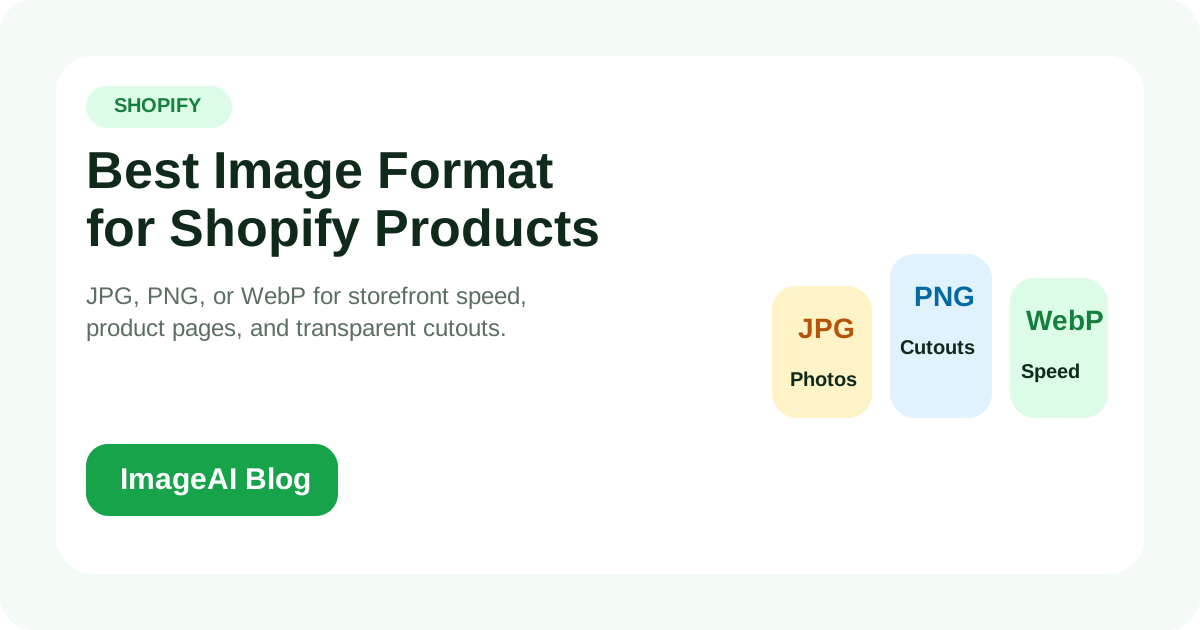
JPG, PNG or WebP for Shopify? A practical cheat sheet by image type — product photo, transparent logo, hero banner, thumbnail — plus the exact sizes, compression rules and WebP setup that keep your storefront fast.
JPG, PNG or WebP for Shopify? A practical cheat sheet by image type — product photo, transparent logo, hero banner, thumbnail — plus the exact sizes, compression rules and WebP setup that keep your storefront fast.
If you run a Shopify store, you've been told to "use WebP for everything". You've also been told to "use PNG for transparency". You've probably been told to "use JPG to save space". All three are partly right and partly wrong.
The truth is: the right image format on Shopify depends on what the image is doing on the page — not on a one-size-fits-all rule.
This guide gives you a cheat sheet by image type, the actual Shopify size requirements, and the compression + WebP setup that gets you fast pages without ugly artifacts.
The Cheat Sheet (Save This)
| Image type on Shopify | Use this format | Why |
|---|---|---|
| Product photo (main PDP image) | WebP, fallback JPG | Best size-to-quality, marketplaces don't crawl PDP images for listings |
| Product photo with transparent background | PNG (master) → WebP for delivery | Transparency required; WebP handles alpha and is much smaller than PNG |
| Transparent logo / icon | SVG if possible, else PNG | SVG scales infinitely; PNG keeps crisp edges |
| Hero banner (full-width) | WebP, fallback JPG | Large file, performance-critical, no transparency needed |
| Lifestyle / scene photography | WebP, fallback JPG | Photographic content compresses well as WebP/JPG |
| Thumbnail (collection grid) | WebP, fallback JPG | Small dimensions, compresses to a few KB |
| Infographic / chart with sharp text | PNG or WebP (lossless) | Lossy compression destroys text edges |
| Animated content | MP4 video instead of GIF | Modern Shopify themes support <video> directly |
If you take only one rule away: WebP as the delivery format, JPG/PNG as the master. That gives you the smallest published files without losing edit flexibility.
When to Use Each Format
JPG for Shopify
JPG is the right format when:
- You're storing the master file for a photographic product image
- Your theme or workflow can't yet serve WebP
- You need maximum compatibility (very old browsers, email creatives, third-party widgets)
Quality settings that work well on Shopify:
- Quality 85-92 for hero and PDP images
- Quality 80-85 for collection thumbnails
- Below quality 75, JPG artifacts (banding, mosquito noise) start showing on smooth gradients
JPG cannot do transparency. Every JPG has a background — usually white.
PNG for Shopify
PNG is the right format when:
- You need transparency (logo over a colored hero, product cutouts that float over backgrounds)
- You're working with sharp graphic content (icons, charts, screenshots)
- You're storing a master cutout that needs to be reused on different backgrounds
The downside: PNG photos are typically 3-5x larger than the same JPG. Never use PNG for full-photo content on a storefront — it slows pages down without a visible quality win.
If you have transparent product photos, the right workflow is: PNG as master, WebP with alpha as delivery.
WebP for Shopify
WebP is now the default delivery format on Shopify and almost every modern theme. It:
- Compresses 25-35% smaller than JPG at the same visual quality
- Supports transparency (replaces PNG for cutouts on the storefront)
- Supports animation (replaces GIF, though MP4 is still better for long content)
- Is supported by every browser shipped since 2020
The practical move: keep your masters as JPG (photos) and PNG (transparent assets). Export WebP for what actually ships to customers.
Shopify Image Size Requirements
Shopify scales images automatically, but it scales down much better than it scales up. Source sizes that work well:
| Where the image appears | Recommended source size | Notes |
|---|---|---|
| Product (PDP) main image | 2048 × 2048 px | Shopify will resize to all needed sizes |
| Product gallery thumbnails | 2048 × 2048 px | Same source, Shopify generates small versions |
| Collection grid card | 2048 × 2048 px (square) | Consistent ratio matters more than dimension |
| Hero banner / slideshow | 2880 × 1500 px (or your theme spec) | Check Retina display target |
| Logo | SVG, or 500 px wide PNG | Avoid baking padding into the file |
| Favicon | 32 × 32 px PNG (Shopify recommends 32×32) | Square only |
| Cart / checkout thumbnail | 2048 × 2048 px source | Shopify shrinks to 80px in cart |
General rule: upload high-resolution masters. Shopify's image CDN does the right thing on serve, including WebP conversion and srcset generation. Uploading 800×800 product images is the most common mistake — it costs you nothing storage-wise to upload 2048×2048, and your PDPs will look sharper on retina screens.
Compression Settings That Actually Work
Bad compression is worse than the wrong format. Settings that hold up across categories:
- Photographic content (JPG/WebP): Quality 85, mozjpeg or libwebp method 6
- Transparent product cutouts (WebP with alpha): Quality 90, slightly higher to preserve edges
- Icons / line art (PNG): Lossless, run through pngquant for ~70% size reduction with no visible loss
- Hero banners: Quality 80-85 — they're large, so every kb counts. Use blur-up placeholders.
A typical product photo at 2048×2048:
- Raw JPG (quality 95): ~1.2 MB
- Optimized JPG (quality 85, mozjpeg): ~280 KB
- Optimized WebP (quality 85): ~180 KB
That's a 7x reduction with no visible quality loss. On a 5-product PDP gallery, that's the difference between 6 MB and under 1 MB of image weight.
Transparent Backgrounds for Shopify
Transparent product images unlock a lot of merchandising flexibility:
- Drop the same product onto multiple seasonal backgrounds
- Build clean overlay layouts on collection pages
- Create campaign creatives without re-shooting
- Match product cards to your theme's accent color
The workflow:
- Start from your highest-resolution product photo
- Use an AI background remover to extract the product
- Save as PNG master (preserves alpha at full quality)
- Export WebP with alpha for storefront delivery (much smaller than PNG, same transparency)
- Or export a white background JPG for marketplaces (Amazon, eBay, Google Shopping)
That single PNG master can power infinite formats.
Common Format Mistakes on Shopify
Using JPG for transparent cutouts
JPG has no alpha channel. Saving a transparent PNG as JPG fills the transparent area with white (or whatever color your software defaults to) and you lose the ability to drop it on any other background.
Uploading 5 MB hero banners
Even with Shopify's CDN, a 5 MB source file slows down image processing and increases storage. Compress hero banners to 200-400 KB before uploading.
Trusting "WebP is always smaller"
For very simple icons or already-tiny thumbnails, WebP and PNG end up similar in size. For text-heavy infographics, lossy WebP can actually look worse than PNG. Test on real content.
Ignoring mobile
Shopify ships responsive images by default, but custom themes sometimes break this. Always check that mobile users aren't being served desktop-size images — it's the most common cause of mysteriously slow Shopify stores.
Saving over your master files
Always keep the original high-res PNG/JPG. Once you've compressed and re-saved a JPG several times, you can't recover the quality. The master is sacred.
A Complete Shopify Image Workflow
End to end, the workflow that works for most stores:
- Shoot or source the highest-resolution master you can (2048×2048 minimum for product, 2880px wide for hero)
- Remove the background if you need a transparent or marketplace-ready version
- Enhance lighting and sharpness if the source is a phone photo
- Upscale only if the source is genuinely low-res
- Save the JPG/PNG master privately
- Export WebP (or let Shopify auto-convert) for storefront delivery
- Export white-background JPG when you need marketplace versions
The format question only matters at step 6-7. Everything upstream should be high-quality, format-agnostic masters.
FAQ
What is the best image format for Shopify product images?
For most Shopify product images, WebP is the best delivery format — it's 25-35% smaller than JPG at the same visual quality and supports transparency. Keep your original photos as high-quality JPG or PNG masters, and let Shopify auto-convert to WebP on the storefront.
Should I use JPG or PNG for Shopify product photos?
Use JPG for standard photographic product images (no transparency needed), and PNG when you need transparency — for example, a product cutout that needs to float over different backgrounds. JPG is much smaller for photos; PNG is essential for transparent assets.
Is WebP better than JPG and PNG on Shopify?
WebP usually delivers smaller file sizes than both JPG (by 25-35%) and PNG (often 50%+ for transparent assets) at equivalent visual quality. It's now the default delivery format on modern Shopify themes. Use it for what ships to customers; keep JPG/PNG as your editing masters.
What size should Shopify product images be?
Upload product images at 2048×2048 pixels minimum, square aspect ratio. Shopify's image CDN automatically generates smaller responsive versions for collection grids, cart thumbnails and mobile. Uploading too-small images (under 1000px) makes PDPs look soft on retina displays.
How do I get a transparent background on a Shopify product image?
Remove the background from your original product photo using an AI background remover, then export the result as a PNG (or WebP with alpha) and upload to Shopify. The transparent version lets you place the product over any background on your storefront.
Does Shopify automatically convert images to WebP?
Yes — modern Shopify themes automatically serve WebP to compatible browsers via the Shopify CDN, with JPG/PNG fallbacks for older clients. You don't need to upload WebP yourself; upload high-quality masters and let the CDN handle delivery format.
Related Reading
Related Posts
More practical reading from the ImageAI team.
We Tested 500 Amazon Product Photos Through AI Background Removal: Here's What Passed Listing Review
We ran 500 real Amazon product photos through AI background removal and checked every output against Amazon's main-image policy. Pass rate: 91.4%. Here's what failed — and why.
How to Prepare Product Images for Multi-Channel Selling: Amazon, Shopify, TikTok Shop, and Beyond
Each sales channel has different image rules, but reshooting for every platform is not the answer. Learn how to build a single-source image pipeline that exports marketplace-ready assets for every channel from one set of originals.
How to Automate Product Image Watermarks and Branding Without Slowing Down Your Pipeline
Manual watermarking does not scale. Learn how to automate logo placement, brand overlays, and consistent visual identity across product images while keeping your workflow fast and your originals intact.
Previous
Product Photo Background Remover for Ecommerce: White Background, Transparent PNG & Batch
The fastest way to turn raw product photos into Amazon, Shopify and Etsy-ready images. Get pure white backgrounds, transparent PNGs and clean edges in seconds — no Photoshop required.
Next
How to Compress Images Without Losing Quality for SEO and Page Speed
Learn how to compress images without hurting visual quality. A practical guide for SEO, Core Web Vitals, e-commerce product pages, and content-heavy websites.