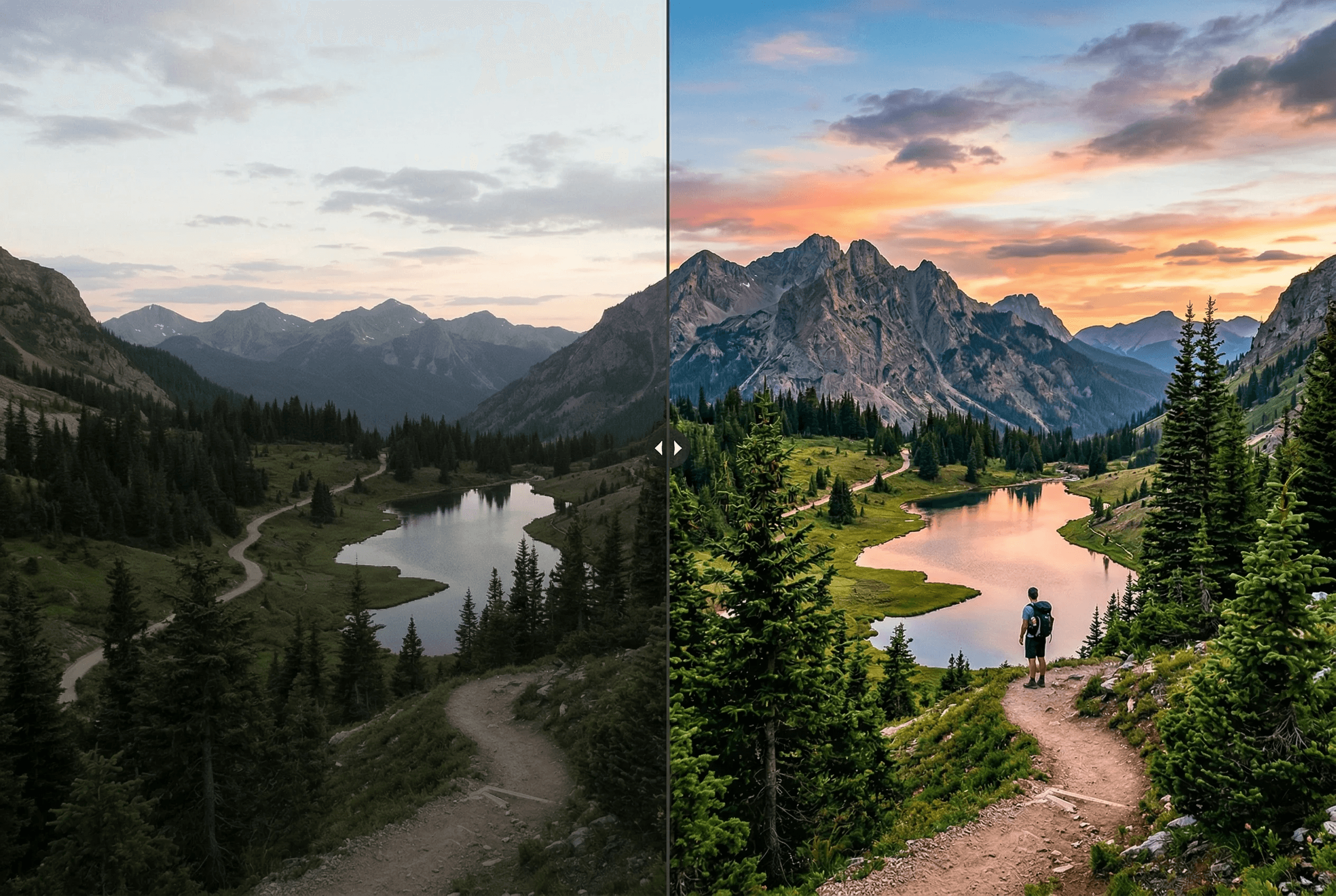
Enhance Any Photo Automatically
Advanced AI that understands your image and makes it look its best.
Auto-correct exposure, white balance, and contrast
Improve sharpness and reduce noise intelligently
Boost color vibrancy without oversaturation
Custom prompt: describe exactly how you want it enhanced
Works with portraits, landscapes, products, and any photo
Batch enhancement for multiple images
Fixes underexposed indoor and night-time photos
Cleans up JPEG compression artifacts and grain
Preserves the original composition — no auto-cropping
So funktioniert es
In wenigen Schritten zu professionellen Ergebnissen.
1
Upload your photo
2
Optionally add enhancement directions
3
AI analyzes and enhances your image
4
Download the enhanced result
What People Enhance with ImageAI
Real situations where one-click enhancement saves a photo — or a whole catalog.
Ecommerce product photos shot on phone
Fix uneven lighting, weak whites and dull color so a phone snapshot looks like a studio shot before it goes on Shopify or Amazon.
Underexposed indoor & restaurant photos
Recover detail in dark areas, fix mixed indoor lighting (tungsten + window), and brighten without crushing highlights.
Real estate listing photos
Brighten interiors, balance window light against room light, sharpen architectural detail — all in one pass.
Portraits with bad white balance
Fix orange tungsten cast or cool fluorescent cast on skin tones without manually adjusting curves.
Travel & landscape photos
Restore sky color, lift shadows in foreground subjects, sharpen distant detail.
Social media content pipeline
Run every Instagram, TikTok or Pinterest post through enhance for consistent brand-quality output.
Image Enhancer Output Specs
What the tool actually changes — and what it leaves alone.
| What gets enhanced | Exposure, white balance, contrast, sharpness, noise, color vibrancy |
|---|---|
| What's preserved | Composition, cropping, subject identity, original resolution |
| Custom prompt | Optional natural-language direction (e.g. 'make it warmer, more contrast') |
| Input formats | JPEG, PNG, WebP, HEIC |
| Output format | PNG by default, or matches your input |
| Average processing time | 3–8 seconds per image |
| Batch support | Yes — multi-image upload supported |
| Cost | 1 credit per image — see pricing for details |
How it works
Auto Enhance vs Manual Editing
Manual photo editing means dragging exposure sliders, eyeballing white balance, sharpening selectively, and denoising in tight crops. For one hero image, that's fine. For a 200-SKU catalog or a daily content pipeline, it's a part-time job.
AI image enhancement collapses that workflow into a single forward pass. The model analyzes the image — what kind of subject it contains, what the lighting looks like, where the noise is — and decides which corrections to apply and by how much. Because it sees the whole image as one signal, it can do things a slider-based workflow can't: lift shadows on a subject without blowing out a window behind them, sharpen detail in a face without amplifying noise in the background, fix a color cast on skin while leaving the wall color natural.
ImageAI's enhancer also accepts a natural-language prompt as steering. Add 'make it warmer and more contrasty' and the model biases toward that look. Add 'product photo, neutral white background' and it leans the other way. This gives you the speed of auto-enhance with the directional control of a manual edit — without ever opening an image editor.
When Enhancement Doesn't Help
A few cases where the enhancer is the wrong tool — and what to use instead.
Image is too small for the final use
Enhancement won't add resolution. If the source is 600px and you need 2000px, run the Image Upscaler first, then enhance.
Heavy motion blur or out-of-focus subject
Enhancement sharpens detail that exists. It can't recover detail that was never captured. Re-shoot if possible.
You need creative re-styling, not correction
If you want a 'film look' or 'oil painting' effect, use Style Transfer. Enhance only does corrections, not stylization.
Product photo with the wrong background
Enhance fixes lighting and color. It doesn't change the background — run Remove Background first if your subject is in front of a busy scene.
Häufig gestellte Fragen
Can I control how the image is enhanced?
Yes! You can add a text prompt describing what you want improved — like 'make it warmer' or 'increase contrast and sharpness'.
Does it work on phone photos?
Absolutely. It's designed to turn smartphone photos into professional-looking images by fixing common issues like poor lighting and noise.
Will it change my image composition?
No. Enhancement only adjusts quality attributes like lighting, colors, and sharpness — the composition stays exactly the same.
Funktioniert es für E-Commerce-Produktfotos?
Ja — Produktfotografie ist einer der häufigsten Workflows. Mit dem Handy aufgenommene Produktfotos haben oft ungleichmäßige Beleuchtung, weiche Weißtöne und matte Farben. Ein Durchgang durch Enhance bringt sie auf veröffentlichungsreife Qualität. Kombinieren Sie mit Remove Background und Upscaler für den vollständigen Workflow.
Was ist der Unterschied zwischen Image Enhancer und Image Upscaler?
Enhancer korrigiert Qualität (Licht, Farbe, Schärfe, Rauschen) bei bestehender Auflösung. Upscaler erhöht die Auflösung um 2x oder 4x und generiert neue Details. Sie lösen unterschiedliche Probleme und ergänzen sich: Zuerst Enhance, um die Quelle zu bereinigen, dann Upscale für die endgültige Größe.
Entfernt es Rauschen aus Bildern bei wenig Licht?
Ja. Der Enhancer erkennt und reduziert gezielt ISO-Rauschen, JPEG-Kompressionsartefakte und Farbrauschen durch Sensorhitze — ohne feine Details zu verwischen wie es generische Denoiser tun.
Kann ich viele Fotos auf einmal verarbeiten?
Ja — verwenden Sie den Multi-Bild-Upload, um dieselben Enhancement-Einstellungen auf einen ganzen Batch anzuwenden. Nützlich für E-Commerce-Kataloge, Immobilien-Shootings oder jeden Fall, in dem Sie über viele Bilder hinweg eine konsistente Behandlung benötigen.
Werden meine Bilddaten privat gehalten?
Uploads werden für die Dauer Ihres Enhancement-Jobs verarbeitet und dann automatisch aus dem temporären Speicher gelöscht. Wir verkaufen Ihre Bilder nicht und verwenden sie nicht zum Trainieren von Drittmodellen. Enterprise-Datenvereinbarungen über die Kontaktseite.
Related guides & tools
Weitere Tools entdecken
Remove Image Background Instantly
Remove backgrounds from any image in seconds with AI precision.
AI Image Expander — Extend Canvas
Extend image canvas in any direction with seamless AI fill.
AI Object Eraser — Remove Unwanted Objects
Remove unwanted objects from photos with AI-powered fill.
AI Inpainting — Edit Specific Areas
Mask and regenerate specific areas of an image with AI.