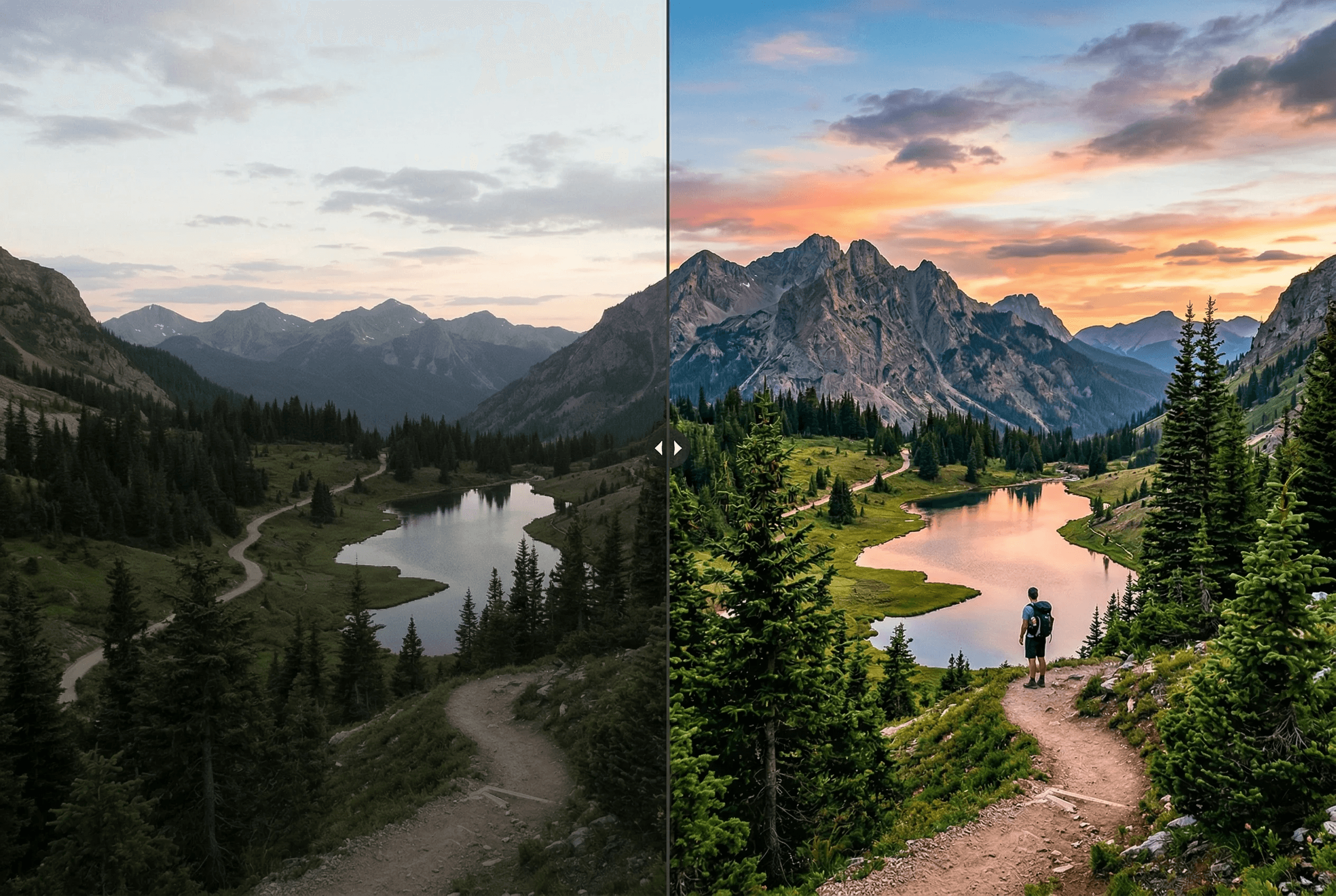
Enhance Any Photo Automatically
Advanced AI that understands your image and makes it look its best.
Auto-correct exposure, white balance, and contrast
Improve sharpness and reduce noise intelligently
Boost color vibrancy without oversaturation
Custom prompt: describe exactly how you want it enhanced
Works with portraits, landscapes, products, and any photo
Batch enhancement for multiple images
Fixes underexposed indoor and night-time photos
Cleans up JPEG compression artifacts and grain
Preserves the original composition — no auto-cropping
Comment ça marche
Obtenez des résultats professionnels en quelques étapes.
1
Upload your photo
2
Optionally add enhancement directions
3
AI analyzes and enhances your image
4
Download the enhanced result
What People Enhance with ImageAI
Real situations where one-click enhancement saves a photo — or a whole catalog.
Ecommerce product photos shot on phone
Fix uneven lighting, weak whites and dull color so a phone snapshot looks like a studio shot before it goes on Shopify or Amazon.
Underexposed indoor & restaurant photos
Recover detail in dark areas, fix mixed indoor lighting (tungsten + window), and brighten without crushing highlights.
Real estate listing photos
Brighten interiors, balance window light against room light, sharpen architectural detail — all in one pass.
Portraits with bad white balance
Fix orange tungsten cast or cool fluorescent cast on skin tones without manually adjusting curves.
Travel & landscape photos
Restore sky color, lift shadows in foreground subjects, sharpen distant detail.
Social media content pipeline
Run every Instagram, TikTok or Pinterest post through enhance for consistent brand-quality output.
Image Enhancer Output Specs
What the tool actually changes — and what it leaves alone.
| What gets enhanced | Exposure, white balance, contrast, sharpness, noise, color vibrancy |
|---|---|
| What's preserved | Composition, cropping, subject identity, original resolution |
| Custom prompt | Optional natural-language direction (e.g. 'make it warmer, more contrast') |
| Input formats | JPEG, PNG, WebP, HEIC |
| Output format | PNG by default, or matches your input |
| Average processing time | 3–8 seconds per image |
| Batch support | Yes — multi-image upload supported |
| Cost | 1 credit per image — see pricing for details |
How it works
Auto Enhance vs Manual Editing
Manual photo editing means dragging exposure sliders, eyeballing white balance, sharpening selectively, and denoising in tight crops. For one hero image, that's fine. For a 200-SKU catalog or a daily content pipeline, it's a part-time job.
AI image enhancement collapses that workflow into a single forward pass. The model analyzes the image — what kind of subject it contains, what the lighting looks like, where the noise is — and decides which corrections to apply and by how much. Because it sees the whole image as one signal, it can do things a slider-based workflow can't: lift shadows on a subject without blowing out a window behind them, sharpen detail in a face without amplifying noise in the background, fix a color cast on skin while leaving the wall color natural.
ImageAI's enhancer also accepts a natural-language prompt as steering. Add 'make it warmer and more contrasty' and the model biases toward that look. Add 'product photo, neutral white background' and it leans the other way. This gives you the speed of auto-enhance with the directional control of a manual edit — without ever opening an image editor.
When Enhancement Doesn't Help
A few cases where the enhancer is the wrong tool — and what to use instead.
Image is too small for the final use
Enhancement won't add resolution. If the source is 600px and you need 2000px, run the Image Upscaler first, then enhance.
Heavy motion blur or out-of-focus subject
Enhancement sharpens detail that exists. It can't recover detail that was never captured. Re-shoot if possible.
You need creative re-styling, not correction
If you want a 'film look' or 'oil painting' effect, use Style Transfer. Enhance only does corrections, not stylization.
Product photo with the wrong background
Enhance fixes lighting and color. It doesn't change the background — run Remove Background first if your subject is in front of a busy scene.
Questions fréquentes
Can I control how the image is enhanced?
Yes! You can add a text prompt describing what you want improved — like 'make it warmer' or 'increase contrast and sharpness'.
Does it work on phone photos?
Absolutely. It's designed to turn smartphone photos into professional-looking images by fixing common issues like poor lighting and noise.
Will it change my image composition?
No. Enhancement only adjusts quality attributes like lighting, colors, and sharpness — the composition stays exactly the same.
Cela fonctionne-t-il pour les photos produit e-commerce ?
Oui — la photographie produit est l'un des flux les plus courants. Les photos produit prises au téléphone ont souvent un éclairage inégal, des blancs ternes et des couleurs fades. Un passage par enhance les amène à une qualité publiable. Combinez avec Remove Background et l'Upscaler pour le flux complet.
Quelle est la différence entre Image Enhancer et Image Upscaler ?
L'Enhancer corrige la qualité (lumière, couleur, netteté, bruit) à la résolution existante. L'Upscaler augmente la résolution de 2x ou 4x en générant de nouveaux détails. Ils résolvent des problèmes différents et se combinent bien : enhance d'abord pour nettoyer la source, puis upscale pour la taille finale.
Enlève-t-il le bruit des photos en basse lumière ?
Oui. L'enhancer détecte et réduit spécifiquement le bruit ISO, les artefacts de compression JPEG et le bruit chromatique dû à la chaleur du capteur — sans flouter les détails fins comme le font les débruiteurs génériques.
Puis-je traiter plusieurs photos à la fois ?
Oui — utilisez l'upload multi-images pour appliquer les mêmes réglages d'amélioration sur un lot complet. Utile pour les catalogues e-commerce, les shootings immobiliers ou tout cas nécessitant un traitement homogène.
Mes données image restent-elles privées ?
Les uploads sont traités pendant la durée de votre tâche puis automatiquement supprimés du stockage temporaire. Nous ne vendons pas vos images et ne les utilisons pas pour entraîner des modèles tiers. Pour les accords de données entreprise, voir la page contact.
Related guides & tools
Explorer plus d'outils
Remove Image Background Instantly
Remove backgrounds from any image in seconds with AI precision.
AI Image Expander — Extend Canvas
Extend image canvas in any direction with seamless AI fill.
AI Object Eraser — Remove Unwanted Objects
Remove unwanted objects from photos with AI-powered fill.
AI Inpainting — Edit Specific Areas
Mask and regenerate specific areas of an image with AI.